Hello from the team at Lineup Ninja. It’s the first release note for a while, because we’ve been busy bringing you our largest update to date!
Welcome to Content Portal a one stop shop for your speakers and submitters to interact with their event content. Whether that be offers to talk, slides, headshots, bios, speaker agreements, hotel requirements, etc etc etc.. Content Portal is the one place they can do it all.
Before we go any further, firstly we’d like to thank everyone who has helped us design and test this feature along the way. Particularly those of you who have been using Speaker Portal. You’ll find a lot of what you’ve been using in Content Portal, along with many new features and polish.
Secondly, the last thing we want to do is disrupt your processes unexpectedly. There are no changes for your events in progress, and Content Portal is currently opt-in for your future events, so you can experiment with it when you’re ready. Details on how to enable it are below.
Right that’s enough preamble. To learn all about it, either watch this 15 minute guide to the new features, or read on below.
At a glance…
- Content Portal for your speakers and submitters to:
- See any tasks that are assigned to them
- Respond to any calls for content for the event
- Upload content
- Review and edit their speaker profile
- See any scheduled sessions that they’re taking part in
- Manage their account
- Simplified Submission Flows so you can
- Easily manage which questions are visible on each stage
- Preview the portal users experience
- Find the configuration you need more easily
- Automatically add the content to the agenda more easily
- Speaker Tasks allow you to assign and track progress for tasks for hundreds of speakers in just a few clicks. Things like:
- Speaker Agreements
- Hotel Requirements
- Requesting Bio’s and Headshots
- Session Tasks, like speaker tasks, but for sessions. You can assign and track tasks for your sessions for things like
- Slides and Headshots
- Session Sponsor Logos
- Session Titles and Descriptions
Let’s take a look at each of these in a little more detail.
Content Portal
Once you enable ‘Content Portal’ for your team all future events will be created with a portal. The portal has two pages, a landing page and a home page.
You can add your event branding and choose the content you want to show to your speakers and submitters. This includes things like
- Open Calls for Content / Papers
- The portal users tasks, like requests for slides, or hotel requirements
- Their sessions, including, optionally, the details of the other panelists that are presenting with.
- Their profile data, so then can see, and optionally update, what’s being published to the Agenda App and integrations.
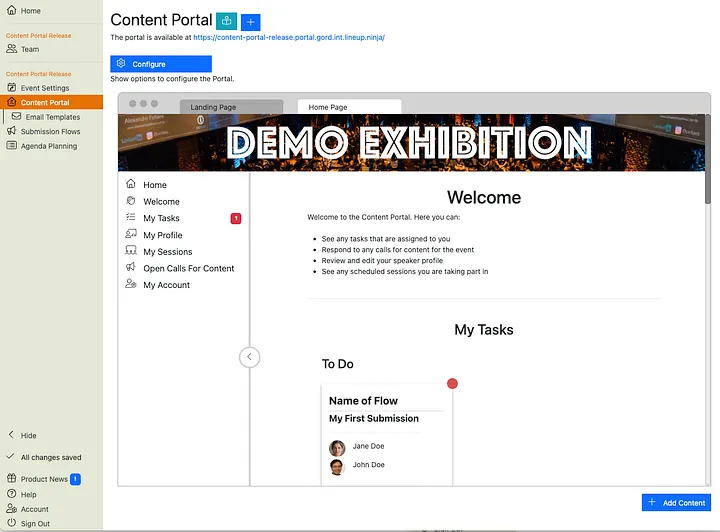
All sections are configurable, so you can use the language appropriate for your event. You can choose which items show in the menu and with what icons.
If you have multiple brands running within the same event you can add multiple content portals, one for each of your brands.
To learn all about the Portal itself please check out the documentation .
Simplified Submission Flows
I can’t imagine you’d disagree with the statement that ‘Submission Flows are too complicated’. We’ve taken some steps to simplify things for you!
Controlling which questions are visible when is much simpler
The old ‘add / hide / lock’ form section, automation actions, served their purpose but, boy, were they difficult to use. You’ll be pleased to know they’ve be binned and replaced with a much simpler UI.
You can now edit a stage, or question, and choose where it should be editable, locked or hidden. Like this:
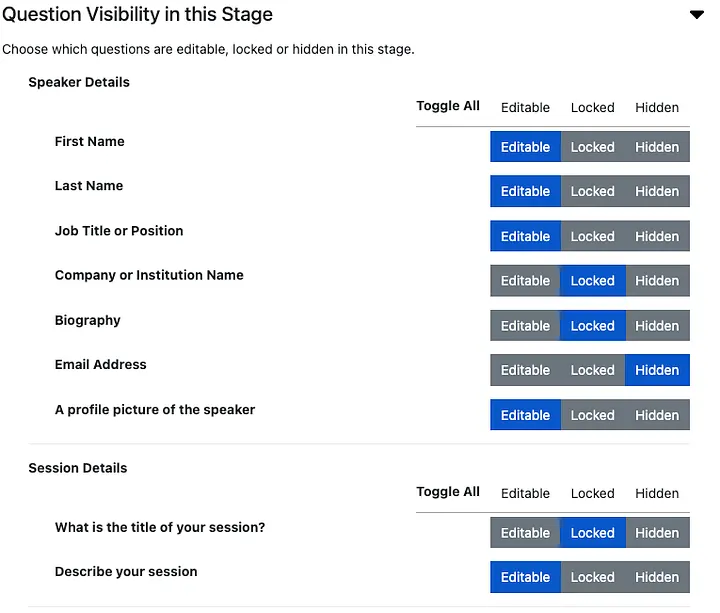
Changes take effect immediately, the need to move a submission out and back into a stage is also banished!
Integrated Form Designer and Submission Stages
The ‘Form Designer’ and ‘Submission Stages’ pages have been consolidated into a single ‘Configuration’ page. This gives you one place to manage all the configuration for your flow, and shows you what the form will look like in each stage.
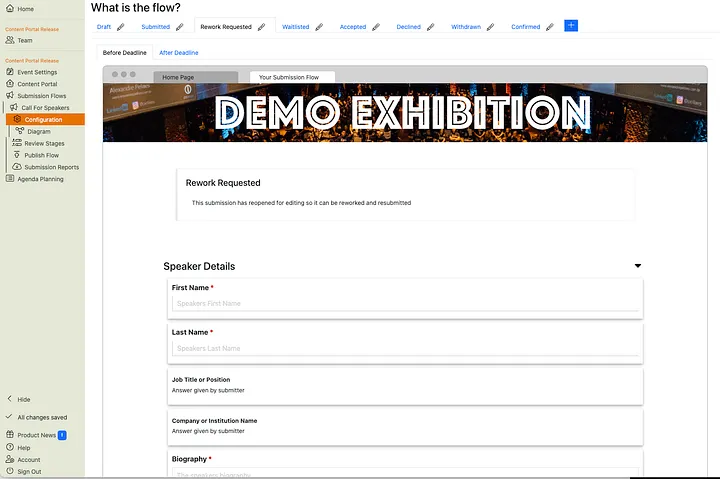
Where did ‘Branding’ go?
Branding is now set in the Content Portal, rather than for the individual Submission Flow.
Where did ‘Submissions’ go?
To save you a click, we moved the list of received submissions up a level in the menu. Now you’ll go straight to your submissions when you click the flow name.
Agenda changes now update the submission
A long standing pain point for Submission Flows is the ability to accidentally overwrite changes you’ve made in the agenda with the original data in the submission, resulting in headaches.
To rectify this issue, changes made in the agenda will now flow ‘back’ to the original submission. For example, if you have an accepted session and decide to update the description on the agenda, the description on the submission will also be updated with the new description.
This ensures your data is always in sync and you can’t accidentally overwrite agenda data with old submission data. The old submission data is still available to be viewed, via a new ‘history’ button next to each answer on the submission.
What happened to the ‘Create / Update’ session automation action?
Changes in Submission Flow data can be copied to the agenda automatically. Previously this required the use of an automation action. This has been replaced with an option on the configuration for each stage.

Previously if you changed this option you had to faff about moving the submissions out of, and back into the stage. This is also banished. The change will take effect for all submissions currently in the stage.
Private Publishing
When you publish a flow you can now choose to publish it ‘privately’, so only users with a special link can access the flow. You can use this to test your flows within your team, or to share a flow with a select community, such as applications for judges.
Can I copy my old flows into Content Portal?
Yes! You can copy your existing flows into a Content Portal event. When you do there are a couple of things you will need to review before you publish the flow. To assist with this there is a migration guide . Don’t worry about remembering this now, you will be guided to it in the flow configuration when needed.
Tell me more!
To learn more about the new flow configuration check out the documentation .
Speaker Tasks
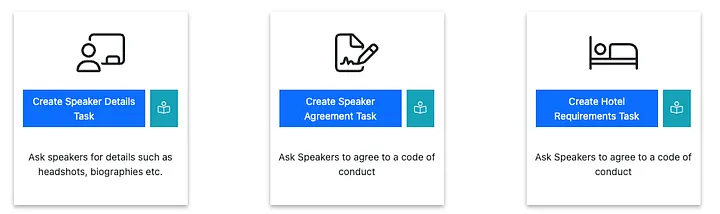
Use a Speaker Task when you need something doing per speaker. For example to ask your speakers to agree to a code of conduct, or to request their hotel accommodation.
Speaker Tasks are similar to Submission Flows but designed to be easily assigned to hundreds of speakers with a single click. You can choose to send a task to all speakers, or only speakers who are chairing a session, or only your VIPs, or many other criteria.
When a task is assigned it is automatically populated with the data you already have on the agenda. For example if you have a headshot and bio for a speaker, those questions will be filled in on the form when the speaker accesses it. This makes it a great way to ask speaker to verify data the existing data and provide anything missing.
Once assigned you’ll see the progress of each speakers tasks in your list of speakers, and can set up e-mail automations to nudge along those slower speakers.
Usually speaker tasks will be completed by the speaker, but some of you require the session submitters to complete this kind of work (you know who you are!). To facilitate this you can choose who will perform the task, and we will automatically assign out the tasks to the right person.
There’s lots and lots more about speaker tasks in the documentation .
Session Tasks
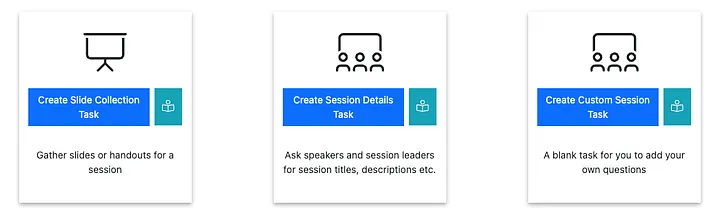
Session Tasks are like Speaker Tasks but for things you need to perform once per session, for example gathering slides or sponsor logos.
You can choose which sessions require which tasks, for example you might only want to send ‘Sponsor Logo Request’ to sessions you have labeled with a ‘Sponsor’ label.
Similarly you can choose who should complete the task, for example the Chairperson for a session, or if there isn’t one, one of the speakers.
Like Speaker Tasks, Session Tasks also automatically fill in the task with any data that is already on the agenda. This way you can share things like a session description and allow the task owner to update it if they wish.
Your data changes over time and Tasks continually check they are doing the right thing. For example if you have assigned a task to a Chairperson for a session, and the Chairperson changes, you will be warned and asked whether the task should be reassigned.
Check out the documentation for lots more on Session Tasks.
How can I give Content Portal a go?
You’ll see this new toggle underneath your list of events. Just turn it on to enable Content Portal for future events you create.
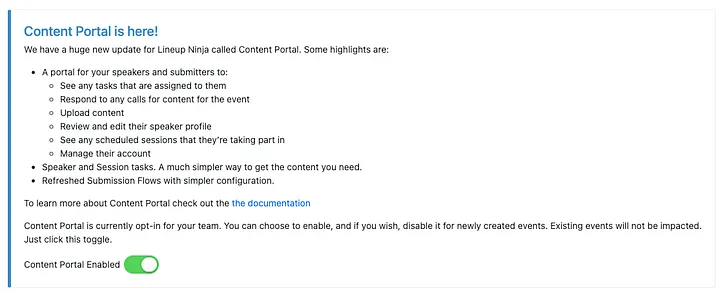
You can also turn it off again if you decide to stick with the previous experience. However if you do decide that Content Portal isn’t for you please contact support@lineupninja.com so we can understand why and work with you to close any gaps.
I have questions!
We’d love to hear them. We’re having drop in sessions on
- Thursday 17th April @ 11am — 12pm UK time
- Tuesday 22nd April @ 2pm — 3pm UK time
Just click here to join and bring all the questions you’ve got.